Thứ Ba, 19 tháng 4, 2016

Google's Package Tracking Card

Google Search has a new card for tracking packages. Google has always displayed a package tracking link when searching for a tracking code from UPS, USPS, FedEx and other carriers, but now you can search for [track package] and enter the tracking number. Click "Find carrier" and Google shows a link like "Track via UPS" or "Track via FedEx". If Google can't find a carrier, it will show this message: "Can't match this number to a carrier".
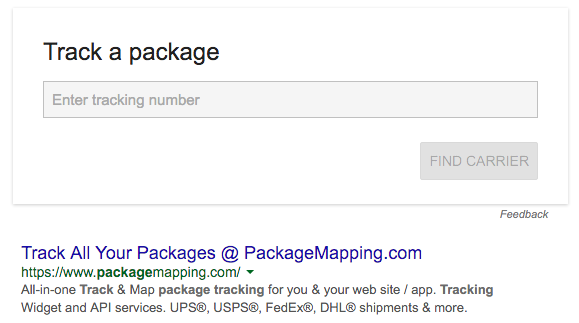


The same card is also displayed when you search for the tracking number.

Another option to track your parcels is to search for [my packages], [my purchases] or [my orders] and Google will show a summary of your orders, including the tracking links, but only if they're available in the confirmation emails. When you search for [track my packages], [track my purchases] or [track my orders], Google also expands the most recent order.

Thứ Sáu, 15 tháng 4, 2016

Background Buffer in YouTube's Android App

I paused a video in YouTube's app for Android and got this message: "paused videos keep buffering if you leave the app". There's a background buffering feature and YouTube shows the how much data has been buffered. For example, "buffering 11.8/39 MB". YouTube videos are actually cached, so that's the reason why YouTube's cache can become huge.


When YouTube caches the entire video, you'll receive a notification which shows that the video is "ready to watch".


This is useful if you have a slow Internet connection: play a YouTube video, pause it, leave the app and wait until the video is cached. Then you can watch it.

An article from Indian Express mentioned in December that "Google will introduce pause buffer feature soon allowing users to pause video, leave it to buffer, even leave the app or site and let it continue buffering". Google CEO Sundar Pichai delivered a keynote speech at a Google India event in New Delhi and announced a lot of interesting features: "tap to translate" will be released this year, "Google will crowd source the data for its translate feature", "1.4 billion Android users in the world", "free WiFi at 100 railway stations in India by December 2016", "Internet access to Indians in their own language is the focus for Google in India".

Android Police reported in December that YouTube was testing background buffering.

Better Google Drive Sync

Google Drive's apps for Windows and Mac got better. You can now select which subfolders to sync with your computer. Until now, you could only select the top-level folders.


Google Drive's sync options show the size of your individual subfolders and the space remaining on your computer, just in case you're running out of free disk space. Another new feature shows a warning when you're deleting or moving a file that's shared with other people.

Sleep Timer in Google Play Music for iOS

The latest version of the Google Play Music app for iOS brings a new icon, a timer feature in the settings and an updated search bar that helps you find music faster.

There's a new "sleep timer" feature in the settings, which stops the music when timer ends. For example, you can set the timer and play your favorite tunes for falling asleep. A similar feature is available in the built-in Clock app for iOS and it works for any music app.


The new app icon is less recognizable than the old one and it's also asymmetric.


Here's the old icon:


Apparently, Google's music service will add support for podcasts next Monday.

Thứ Năm, 14 tháng 4, 2016

Tips for Saving to Google

If you're using the Save to Google Chrome extension, here are a few tips:


1. Select some text from the page before clicking the star icon to use this text as a note. You can change it later.


2. You can change the title of the page you save in the small box that's displayed after clicking the star icon. Just click the title and it becomes editable.


3. Pick an image to illustrate the page. From the same box, you can click the arrow icons to choose an image from the page.

4. If you don't like the images, there's a default thumbnail that uses the first character from the title. Click the right arrow icon until you reach the end of the list.


5. Add a tag to group similar pages.


6. If you clicked the star icon by mistake, click the delete icon to remove the page from your list of saved pages.

7. Use the Google Save site to manage your saved pages. You can select multiple pages to add tags or delete the pages. If this link doesn't work for you: google.com/save, then try google.com/save?gl=us.

8. The search feature is very powerful because it searches the entire text of your saved pages, not just the title and description.


9. The only keyboard shortcuts I could find are the left and right arrow keys, which allow you to navigate between your saved pages, just like in Google Image Search.

10. How to save pages without using the extension? Use Google Image Search and search for site:URL, where URL is the address of the page. Pick one of the images you like and click "save". Please note that this only works for pages that include images and only if the pages and images are indexed by Google.

Google Brings Back the Old Weather Cards

Back in January, Google redesigned the weather card for mobile. Now the old interface is back, but it's not clear if this is a bug or Googlers realized that the redesigned card wasn't good enough.


Google's attempt to build an even more powerful web application for weather brought some new information (air quality, UV index, sunrise and sunset times), but also a few extra taps. For example, you had to tap the "10 days" tab to see the forecast for the next 10 days.

Here's a screenshot of the ill-fated redesign:

Thứ Tư, 13 tháng 4, 2016

Save to Google

It looks the Google Save site is not restricted to bookmarking image search results. The "Save to Google" Chrome extension lets you save any web page and add tags. "One spot for webpages and Images: Your saved webpages and saved images from Google Image Search will live together at google.com/save," mentions Google.

In fact, the saving feature from Google Image Search actually bookmarks the web page that includes the image and automatically selects the image you are saving to display it next to the site's name. The Chrome extension lets you save any web page and you can pick an image from that page.


If there's no image to pick, Google shows the first letter from the title of the page.


If Google wants to create a general-purpose bookmarking site, then it could also integrate with Google Web Search and sync with Chrome bookmarks.

{ Thanks, Carlos. }